
Coldsummer
Experienced
I've recently upgraded my old iMac to a new Mac Mini with a Studio Display monitor and the interface is really dark. Is there any way to change settings as it's really difficult to use now? 


I'm sure the grid never used to be all black??.....Your screenshot looks perfectly normal to me.
You might need to adjust something on your Mac.....I'm seeing a grey grid with black squares (the empty spots).I'm sure the grid never used to be all black?

Your display brightness can be adjusted in the system settings. Also, there’s a setting that allows the monitor to adjust to the room’s ambient light, which might be fooled by shadow hitting the sensor in the monitor.I've recently upgraded my old iMac to a new Mac Mini with a Studio Display monitor and the interface is really dark. Is there any way to change settings as it's really difficult to use now? View attachment 150733

For me, the grid in the pic you posted is not all black, I can clearly make out the grid.I'm sure the grid never used to be all black?


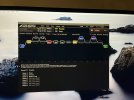
I've tried 3 different monitors and all the same som it's an issue with the Mac settings. I'll contact Apple support.Looks like you need to reset the settings on your monitor itself.
Either that or the monitor is ganked.
Or the cable...lol
It looks like a contrast issue but latest Mac OS doesn't have that option. USB C Thunderbolt connection.You should have both Brightness and Contrast at a minimum. The monitor probably has many settings...
Did you adjust the Mac or monitor or both?
Agreed with above that it could also be the cable to the monitor.

This. It looks like you've got contrast cranked all the way up.It looks like a contrast issue...

Does it have other options (HDMI, DP) that you could try?It looks like a contrast issue but latest Mac OS doesn't have that option. USB C Thunderbolt connection.
Yes, I've tried them all.Does it have other options (HDMI, DP) that you could try?
I agree, that's what I thought but theres no way of manually adjusting the contrast. Also strange how the screenshot shows the blocks yet in real life it all appears black? I'm going to put a support request in to Apple.This. It looks like you've got contrast cranked all the way up.

Looks to me like it is using a very limited color space (e.g. 8-bit instead of 24-bit). I think in Apple speak it is 256 mode ( as opposed to Millions mode). No idea how to change it though. Typically it is set by EDID being sent from your monitor to your Mac when you connect them or boot. Do you have another monitor you could try to compare?Just to prove I'm not mad I took a photograph of the screen and this is how it looks in real life (all black) as opposed to the screenshot which shows the grid. I've tried adjusting all the obvious display parameters but the only manually adjustable one is brightness which makes virtually no difference.View attachment 150778

