

BigStubby
Member
For the setup you'll need to connect your Blackstar Live Logic to your PC using USB and download/launch the Blackstar Live Logic App. Your Blackstar MIDI out can remain connected to FM3 MIDI in.
The Blackstar Live Logic stomp (switch) lights will NOT stay lit to indicate the current stomp. It is possible to make the stomp light work but it requires MIDI out from FM3-to-MIDI in on the Blackstar and there's quite a bit of MIDI config to make that happen... it wasn't worth it for me to go after that. Having the FM3's buttons 1 and 2 scroll through the presets and the FM3's display worked fine enough.
When playing live I like the way it all works. On the FM3 I use Exp1 for Output Volume and Exp2 for Wah across most of my presets.
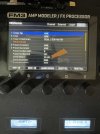
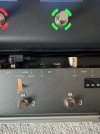
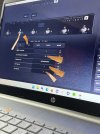
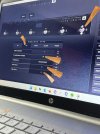
Here are steps to configure/setup the Blackstar Live Logic USB MIDI Controller for use with an FM3:
LOOK closely for the orange pointers for switch settings, parameters and the like.




EOF... just to be nerdy.
The Blackstar Live Logic stomp (switch) lights will NOT stay lit to indicate the current stomp. It is possible to make the stomp light work but it requires MIDI out from FM3-to-MIDI in on the Blackstar and there's quite a bit of MIDI config to make that happen... it wasn't worth it for me to go after that. Having the FM3's buttons 1 and 2 scroll through the presets and the FM3's display worked fine enough.
When playing live I like the way it all works. On the FM3 I use Exp1 for Output Volume and Exp2 for Wah across most of my presets.
Here are steps to configure/setup the Blackstar Live Logic USB MIDI Controller for use with an FM3:
LOOK closely for the orange pointers for switch settings, parameters and the like.
EOF... just to be nerdy.
Last edited:


